
The Analyst's Stack Part 18 of 22
Automating without writing code
The most common reaction to the post that builds a watcher is not confusion. It is agreement followed by a shrug:
I understood every word of that and I am still not going to write Python.
Fair. So here is the same tool, built the other way: as boxes on a screen, with no code in it. Then the part that matters more: the specific places where the boxes run out, and how you will know you have reached one.
A workflow is a trigger and a chain
A node-based tool (you assemble boxes on a canvas and join them with wires, instead of typing statements in a file) has exactly 2 concepts, and once you have those, the whole category makes sense.
I am going to use n8n for the worked example, because it self-hosts and because its node names describe what they do. Make, Zapier, Power Automate and Node-RED differ in pricing, in where they run and in what they connect to, and not at all in the 2 concepts below. If you are reading this with a different canvas open, the box names will change and nothing else will.
The first is the trigger. One box on the left that decides when everything runs: a clock, an incoming email, a form submission, a message in a channel. Nothing happens until the trigger fires.
The second is the chain. Every box after the trigger takes what the box before it produced, does one thing to it, and hands the result on. That is the entire model. A node has no idea what came 2 steps earlier; it sees the output of its immediate neighbour and nothing else.
What flows along the wire is a list of items (one item is one record, whether that is an entry, a message or a row, carried as a small bundle of labelled fields). If a node receives 5 items, it usually runs 5 times, once per item, and passes 5 results on. That repetition is free and invisible, and it is the reason a chain of 7 boxes can process a page of 30 entries without anybody writing a loop.
Now put that against the spine. This series has spent 17 posts on 6 stages: collect, normalize, store, analyze, alert, present. A node-based workflow is not a different architecture. It is the same 6 stages with a specific node sitting on each one.


Read that diagram twice. The first pass tells you a visual tool covers the same ground a script does. The second pass tells you where it will eventually stop, because the highlighted box is the stage where the pre-built nodes run out first.
The same watcher, as boxes
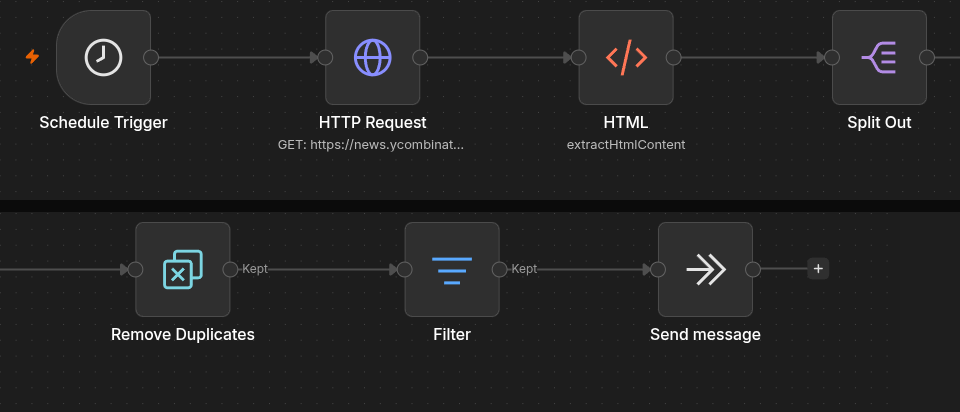
Here is the build. Same problem as the script version — check a page on a schedule, notice what is new, tell a human — in 7 nodes and no code. I am describing canvas actions, because that is what you actually do: add a node, pick an operation from a dropdown, fill in two or three fields, drag a wire.
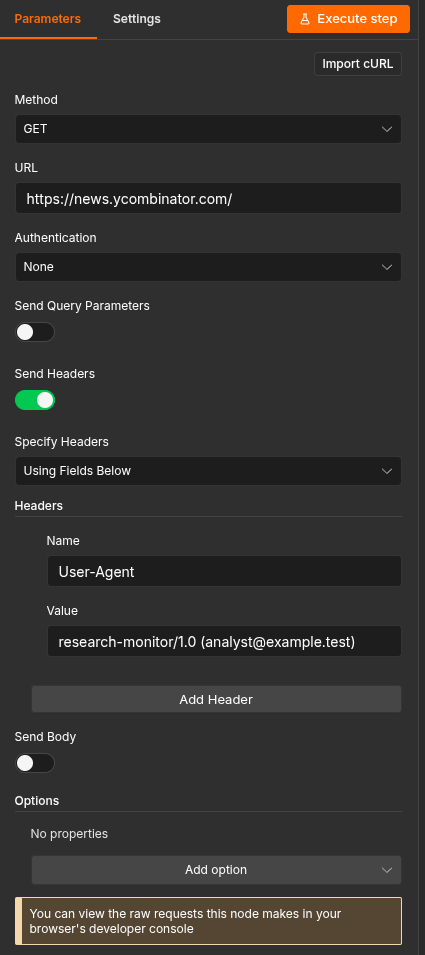
User-Agent that says what your tool is and gives a way to contact whoever runs it,
such as research-monitor/1.0 (analyst@example.test). The honesty argument from Building your
first automation workflow applies here
unchanged; the tool does not make you anonymous and you should not want it to.The HTTP node hands you one item containing the whole page. The HTML node pulls values
out of it with a CSS selector, exactly as BeautifulSoup did: you type article.entry a
into a field rather than into a function call. That still gives you one item holding a
list of 30 links, so Split Out turns that list into 30 items, one per entry.
This is stage 2, and it is the step people delete because it looks like it does nothing. Everything downstream counts items. Give it 30, not one.
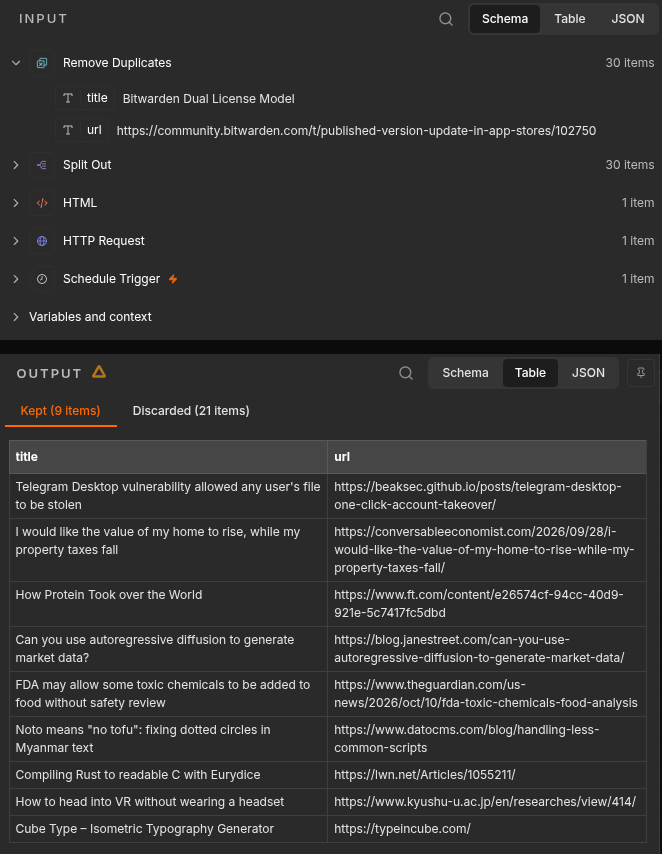
The node that makes this a tool rather than a toy. It has an operation for discarding items it has already seen in previous runs, and you tell it which field to compare: the entry’s URL. It keeps its own record of what has passed through, between runs, without you designing a database.
That is stage 3, and it is the single feature most worth checking for when you are choosing between tools. A visual tool without cross-run deduplication will send you the same 96 messages by morning that a first-draft script does.
One condition: keep the item only if its title contains a term you care about. Anything failing the condition stops here and the chain below it never runs for that item.
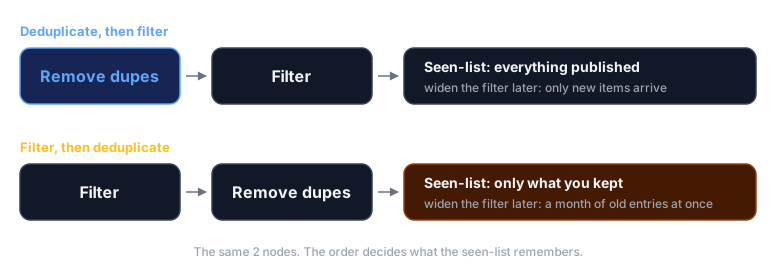
Put the filter after the deduplication step, not before it. Order matters in a way that is easy to miss: filter first and your seen-list only ever contains the items you cared about, so the day you widen the filter, a month of previously-ignored entries arrives at once. Deduplicate first and everything the source published is on record, whether it interested you or not.
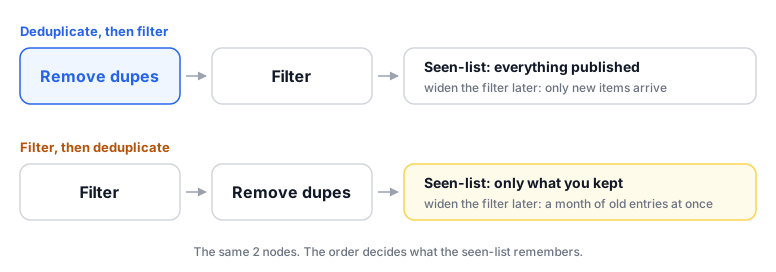
Seven boxes. Press the button that runs the workflow once, watch it go green left to right, then turn on the schedule. The first run alerts on everything currently on the page and every run after that is silent until something genuinely new appears. Same behaviour, and the same first-run burst, as the 60-line script.
What the canvas actually gives you
Four things, and none of them is “it is easier.” Some of this is harder than the script.
There is nothing to install or deploy. The Python watcher is 60 lines and about six hours of everything else: a machine that stays awake, Python on it, a scheduler, a place for the database file, some way of noticing it died. A workflow tool arrives with all of that already decided. For an analyst whose alternative is “ask someone in IT for a server”, that gap is the entire difference between a tool existing and not existing.
The logic is visible. You can see the whole thing at once. Where a script’s control flow lives in indentation you have to hold in your head, a canvas puts the branch on screen as 2 wires going to 2 different places.
A colleague can read it without you. This is the one I would argue hardest for. Handover is where most analyst-built tooling dies — a script is readable by people who read scripts, which in most investigative teams is one person, and that person is you. Seven labelled boxes survive your annual leave.
Credentials are managed, not lying next to the script. A workflow tool stores an API key or a chat token in its own credential store, references it by name, and keeps it out of the thing you export and share. The script version’s default outcome is a token typed directly into the file, which then gets copied to a laptop, pasted into a message to a colleague, and eventually committed somewhere. That failure has a better safety record here, and it is a security improvement rather than a convenience one.
Running it yourself
One decision is worth making deliberately: hosted or your own machine.
Most of these tools offer both. Hosted means somebody else runs it and your collected material passes through their infrastructure. Self-hosted means the whole thing runs on a machine you control, and the pages you fetch, the records you keep and the credentials you store never leave it.
For investigative work the argument is the one made in OPSEC for automation and the same one this series makes about local models: the question is not whether a vendor is trustworthy, it is how many parties know what you are interested in. A hosted workflow tool knows every source you watch, how often you check it, and when your interest in it changed. That is a sensitive profile of your work even when no single item in it is sensitive.
Self-hosting costs you the operations work you were trying to avoid — a machine, updates, backups of the workflow definitions. Sometimes that trade is obviously right and sometimes it obviously is not. Make it on purpose.
Where it stops being enough
Everything above is real. So is this. Six places the canvas runs out, roughly in the order you will meet them.
Real state across runs. Deduplication is the one piece of memory you get for free, and it answers exactly one question: have I seen this before? The moment you need a different question (has this item’s price changed since Tuesday, is this the third time this week that name appeared, what did the page look like before today’s edit), you need somewhere to write things and read them back. You can bolt a spreadsheet or a database node on, and it works, and it is also the point where your 7 clean boxes become 15 boxes with read-modify-write logic spread across them.
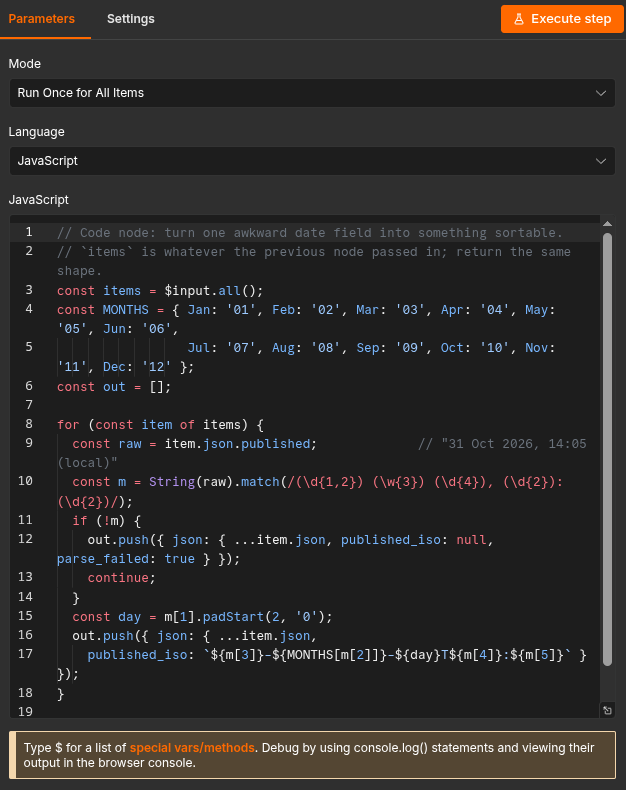
Parsing that is not trivial. A CSS selector covers a well-behaved page. Then you meet
a date written as 31 Oct 2026, 14:05 (local), and a source that puts 2 fields in one
string, and a feed that changes shape depending on the entry type. There is no node for
that, so you add a code node and write something like this inside it:
// Code node: turn one awkward date field into something sortable.
// `items` is whatever the previous node passed in; return the same shape.
const items = $input.all();
const MONTHS = { Jan: '01', Feb: '02', Mar: '03', Apr: '04', May: '05', Jun: '06',
                 Jul: '07', Aug: '08', Sep: '09', Oct: '10', Nov: '11', Dec: '12' };
const out = [];

for (const item of items) {
  const raw = item.json.published;             // "31 Oct 2026, 14:05 (local)"
  const m = String(raw).match(/(\d{1,2}) (\w{3}) (\d{4}), (\d{2}):(\d{2})/);
  if (!m) {
    out.push({ json: { ...item.json, published_iso: null, parse_failed: true } });
    continue;
  }
  const day = m[1].padStart(2, '0');
  out.push({ json: { ...item.json,
    published_iso: `${m[3]}-${MONTHS[m[2]]}-${day}T${m[4]}:${m[5]}` } });
}

return out;
That is JavaScript. It has a loop, a regular expression, a failure branch and a data structure. You are programming — in a text box in a browser, with no file on disk, no search across your other workflows, no linter and nothing keeping a history of what it said last week. The no-code promise ends at this box, and it ends quietly, one small reasonable edit at a time.
Testing. There is no test suite for a canvas. You cannot write “given this page, assert 3 items come out with these IDs” and run it after every change. What you have instead is running the workflow and looking at it, which is fine for 7 nodes and is not fine for the 15-node version you will have in 4 months. The script version’s failure section — alarm on zero, log what you parsed, send a heartbeat — is harder here, not easier, because each of those defences is another node rather than another line.
Review and diffing. A workflow is stored as JSON (a structured text format that machines read easily and people read badly). You can put it in version control, and you should, and the diff will be several hundred changed lines because you dragged a box 4 pixels to the left. A reviewer cannot see what changed. In practice, teams stop reviewing workflow changes, which means a visual tool’s greatest strength, that the logic is legible, does not extend to the logic’s history.
Debugging a run that failed 3 days ago. The execution view is excellent while the run is in front of you. Execution history is finite: it gets trimmed by age or count, and it is the first thing turned down when storage gets tight. A script that appends to a log file has a worse debugger and a much better memory. Decide early what you want kept, because the default is usually “not that much.”
Portability. Your work exists as that JSON, in that tool’s schema, referencing that tool’s node types. Moving to a different visual tool is a rebuild, not an export. That is not a reason to avoid one — a script has lock-in too, to a language and a set of libraries — but it is a reason to expect the rebuild rather than be surprised by it.
What a visual tool cannot do for you
It cannot show you what somebody changed. The workflow is stored as JSON, so a workflow diff is not a readable change: dragging a box 4 pixels to the left rewrites several hundred lines, and quietly widening the filter that decides what reaches a human rewrites a handful of lines buried in the middle of them. Both look the same in review, so in practice nobody reviews either.
That matters more here than it would elsewhere, because the canvas is the thing you were going to hand to a colleague. You can hand them the workflow as it stands today. You cannot hand them the question they will actually ask, which is what it was doing on the day it produced the thing now sitting in a published piece. A 60-line script answers that in a diff somebody can read in a minute.
The tool tells you when to leave
Start here. That is the recommendation, and it is not a compromise recommendation.
Most analysts’ real automation problems are genuinely small: watch a thing, notice a change, tell someone, put it in a sheet. Those fit entirely inside a visual tool, they fit today rather than after a month of learning Python, and they keep working while you are on leave because somebody else can read them. If you do decide to learn Python later, the first workflow post lists the beginner courses I would start with.
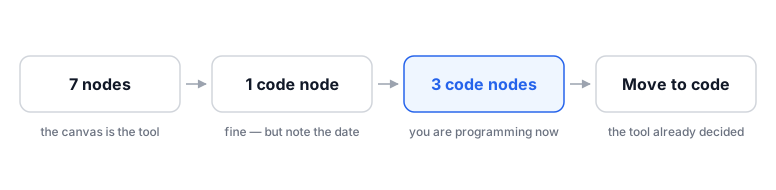
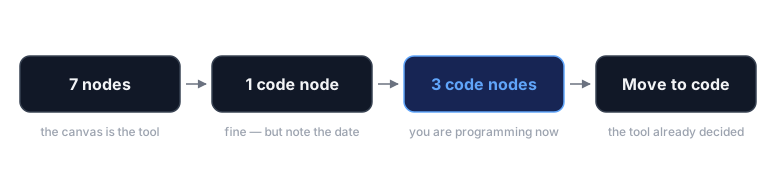
The useful part is that you do not have to make the build-or-code decision in advance, which is good, because in advance you have no information. The workflow makes it for you, and it announces itself the same way every time: count your code nodes. Zero is the tool working as intended. One is fine, and worth noting the date. Three means you are maintaining a program in a web form, and the honest move is to admit it and move that part into a file where a diff is readable and a test can exist.
Moving is not starting over, either. The 6 stages do not change. The thinking you did about stable identifiers and what the filter should keep survives the port intact, because that thinking was never about the language. Only the typing changes.